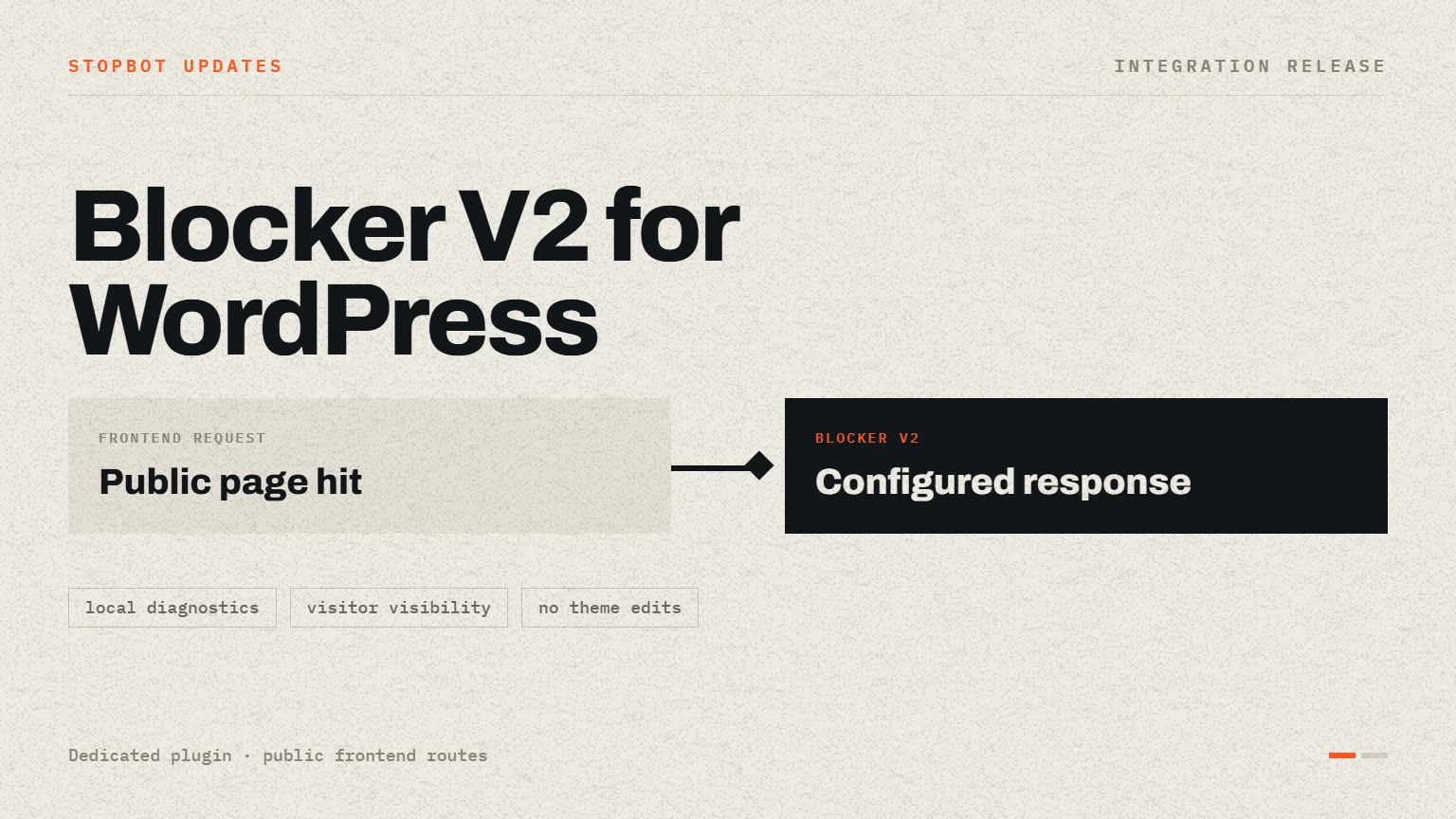
Stopbot has introduced a dedicated WordPress integration for Blocker V2. The plugin gives site administrators a guided way to connect a WordPress frontend to an existing Stopbot configuration without embedding service credentials in theme files or rebuilding request handling for every template.
Protection focused on public page requests
The integration evaluates public frontend page requests and leaves WordPress administration, login, AJAX, cron, REST, XML-RPC, and static asset paths outside the protection flow. This keeps the decision request focused on visitor-facing pages and avoids generating service calls for images, stylesheets, scripts, and administrative operations.
- Connects to the current
/services/blockerv2endpoint. - Sends the visitor IP, user agent, requested URL, and supported request context.
- Uses
blockAccessas the final policy decision. - Applies the page response configured for the selected Blocker V2 configuration.
- Supports multiple include or exclude paths for site-specific coverage.
Redirect-loop protection is included
A blocked visitor can be redirected to another page, including a page on the same site. To prevent ERR_TOO_MANY_REDIRECTS, the plugin compares the current request with the returned redirect destination using normalized scheme, host, path, slash, and query handling. Matching destinations are not redirected again.
Operational visibility inside WordPress
The administration screen includes configuration status, connection testing, diagnostic logs, and a visitor log stored in a dedicated WordPress database table. Administrators can inspect request time, IP information, country, network details, device, operating system, browser, detection description, access decision, threat signal, and API HTTP status.
Visitor records support database-backed sorting, filtering, and pagination, with a compact details layout on tablet and mobile screens. The plugin removes its dedicated table and settings during uninstall so a deliberate removal does not leave application data behind.
Designed for a safer first setup
- Create a Blocker V2 configuration in the Stopbot panel.
- Enter the API key and exact configuration name in the setup wizard.
- Run the connection test and review the returned status.
- Confirm trusted proxy handling when the site is behind Cloudflare or another controlled proxy.
- Enable protection after testing both an allowed request and a configured block response.
Choose the installation source
Administrators who want the shortest installation path can use the official ZIP package. The public GitHub repository provides the source for review and version tracking, while the WordPress service guide covers installation, configuration, connection testing, proxy handling, and the first frontend checks. Whichever source is used, keep the plugin folder structure intact when creating or uploading the ZIP.
Verify the production path before enabling it
- Test the homepage, a standard page, a dated post, and every included or excluded path used by the site.
- Confirm that same-site redirect destinations cannot send the visitor back into a redirect loop.
- Enable trusted proxy headers only when a controlled proxy or load balancer protects the origin.
- Review the API HTTP status and sanitized diagnostic log when a request is not handled as expected.
- Confirm that static assets, WordPress administration, login, AJAX, cron, REST, and XML-RPC remain outside the frontend decision flow.
The WordPress integration is supported by an installation guide and public source repository, giving teams both a straightforward deployment path and a transparent view of how Blocker V2 decisions are applied.
Stay informed
Follow the latest Stopbot updates.
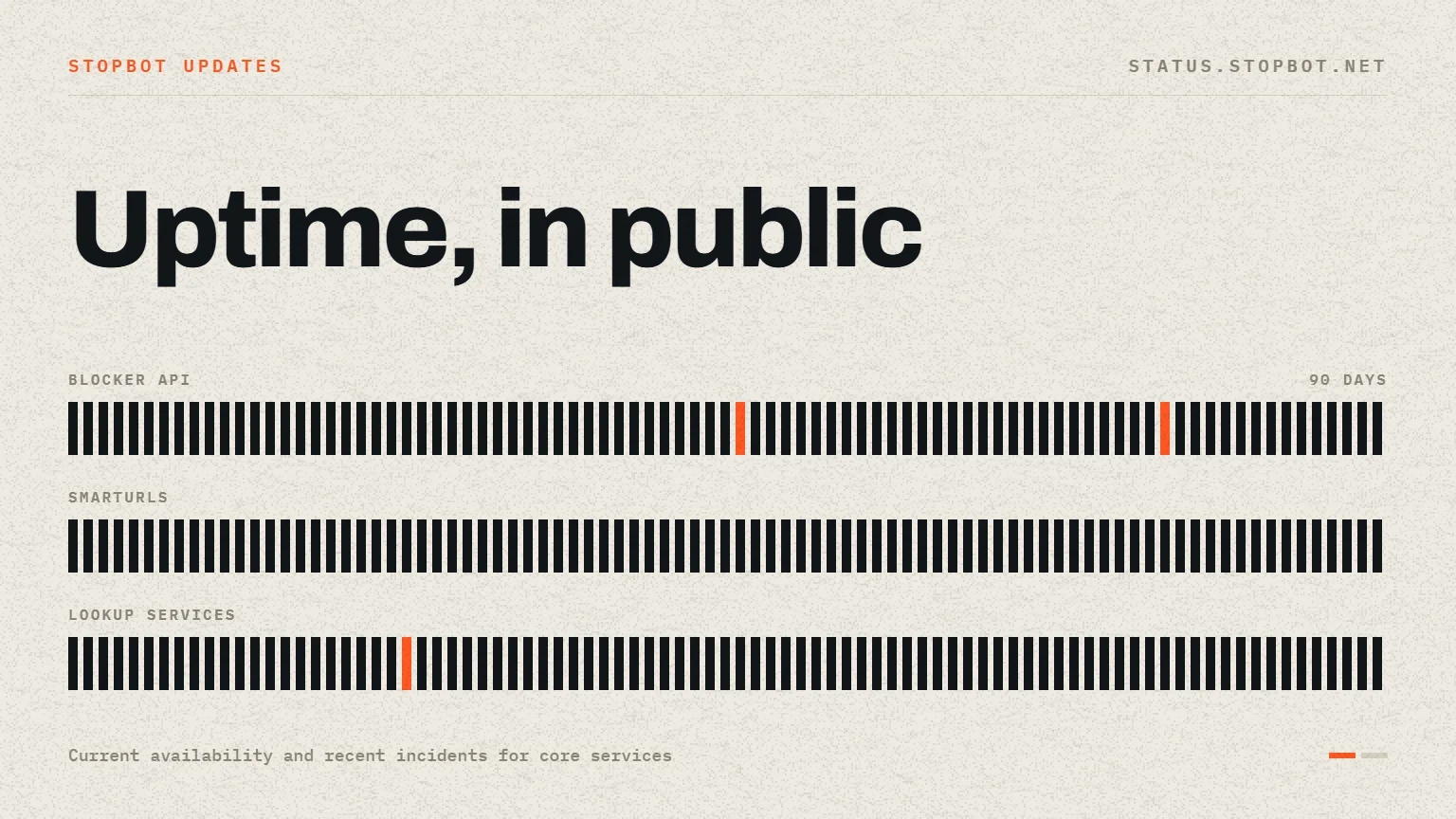
Use the documentation for implementation details and the public status page for live service availability.